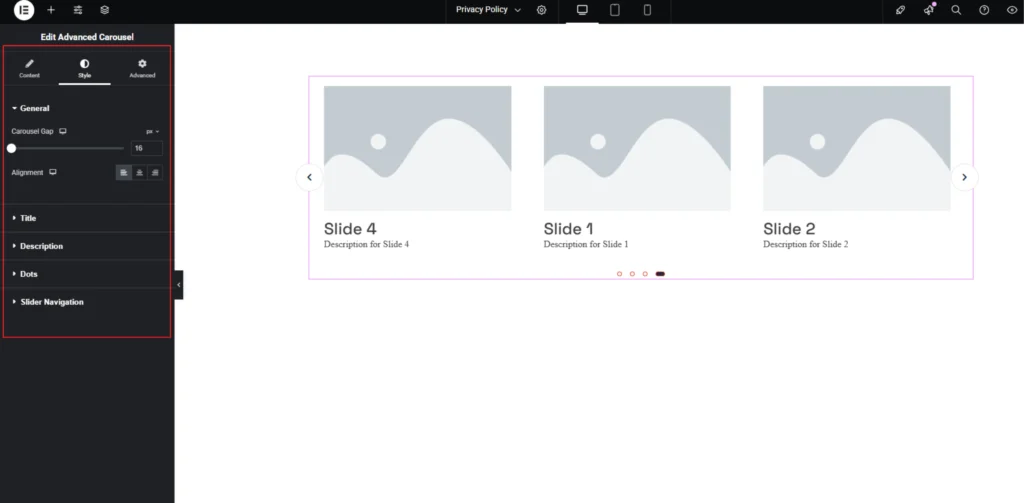
HEA Advanced Carousel
Refer to the documentation below to get a detailed guide on how to use the Advanced Carousel widget effectively.
Step-1:
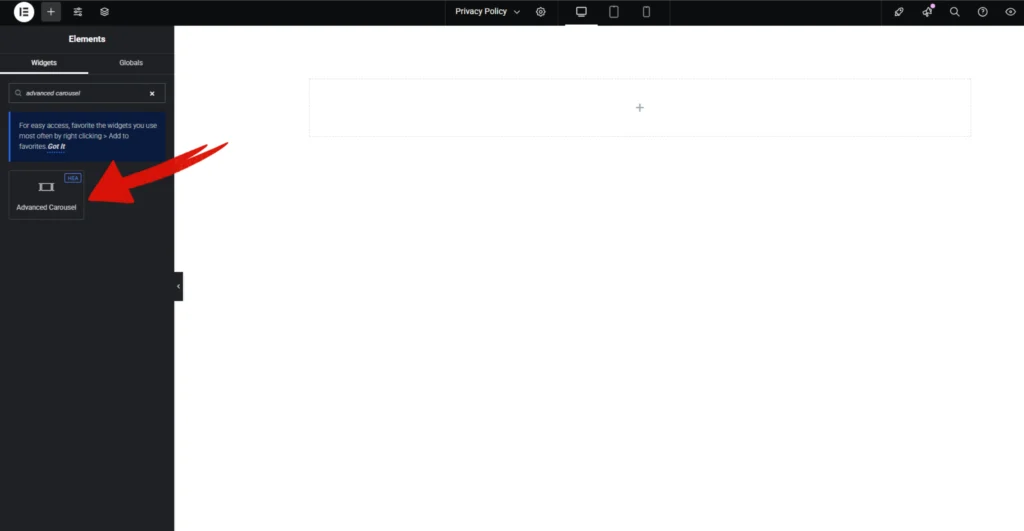
Open Elementor Editor Search for “Advanced Carousal” in the Elementor panel, drag the “Advanced Carousel” widget to a container on your page.
Step-2:
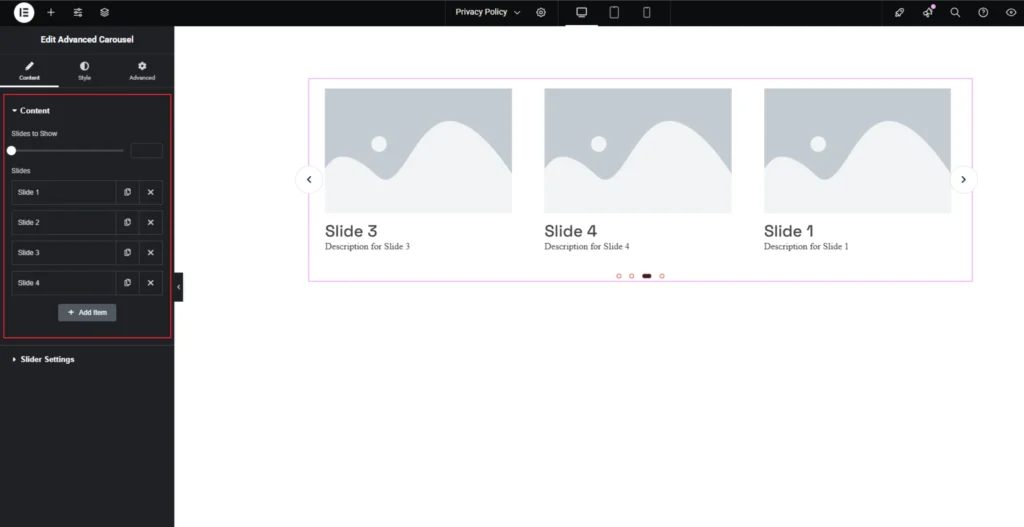
The Content section of the Advanced Carousel widget allows you to manage the number of slides displayed and customize individual slides. Use the Slides to Show option to adjust how many slides appear at a time. Under the Slides panel, you can add, duplicate, or remove slides as needed.
Step-3:
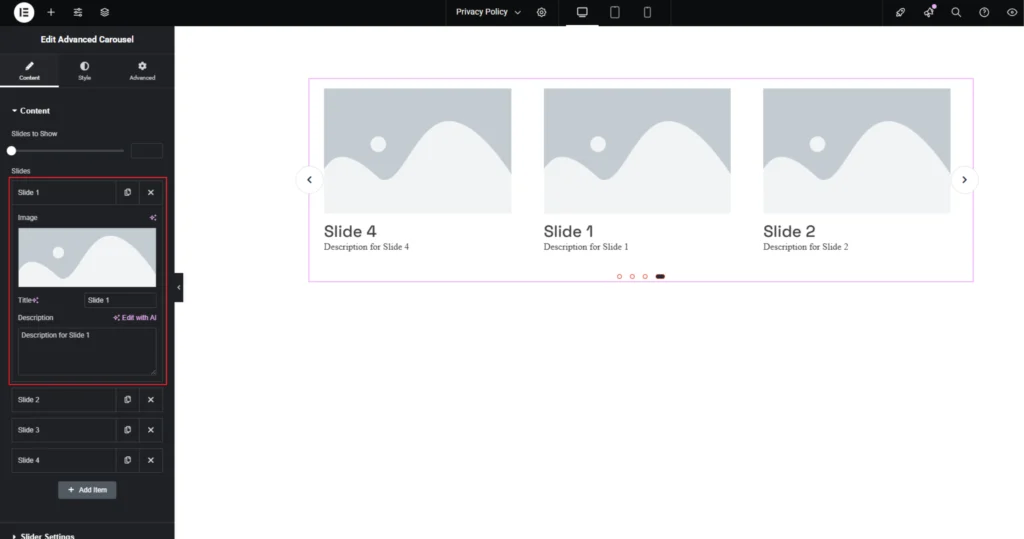
The Advanced Carousel widget allows you to customize each slide individually. Under the Slides section, select a slide to modify. You can upload an image for the slide, set a Title, and add a Description to provide relevant content.
Step-4:
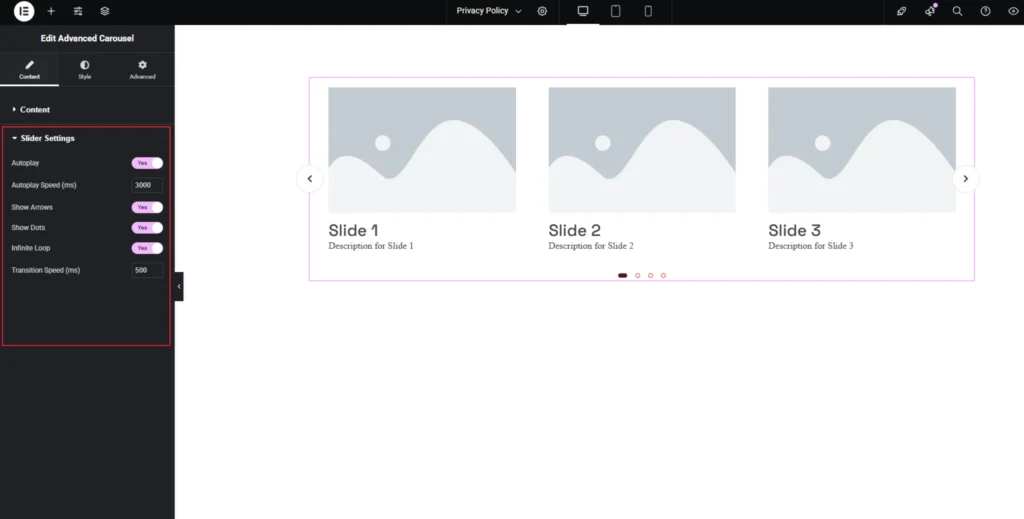
The Slider Settings section allows you to control the behaviour and functionality of the Advanced Carousel. You can enable Autoplay to have slides transition automatically and adjust the Autoplay Speed (ms) to set the delay between slides. The Show Arrows option adds navigation arrows, while Show Dots enables pagination indicators below the slider. Turning on Infinite Loop ensures that the slides keep rotating continuously. You can also set the Transition Speed (ms) to control the duration of each slide transition for a smoother effect.
Step-5:
Step-6:
Adjust the Carousel alignment using the “Alignment” option. Customize the Carousel style from the “Style” section..