HEA Team Carousel
Refer to the documentation below to get a detailed guide on how to use the Team Carousel widget effectively.
Step-1:
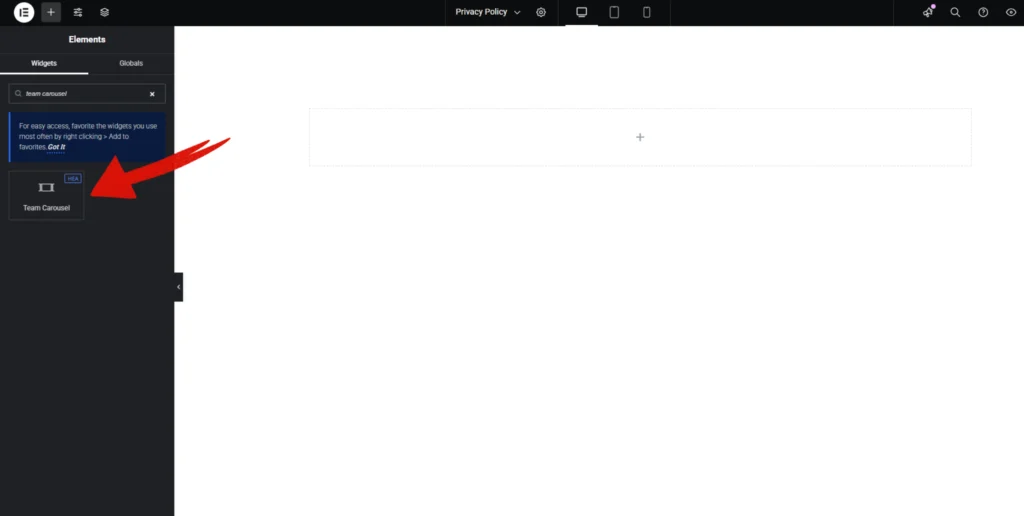
Open Elementor Editor Search for “Team Carousal” in the Elementor panel, drag the “Team Carousel” widget to a container on your page.
Step-2:
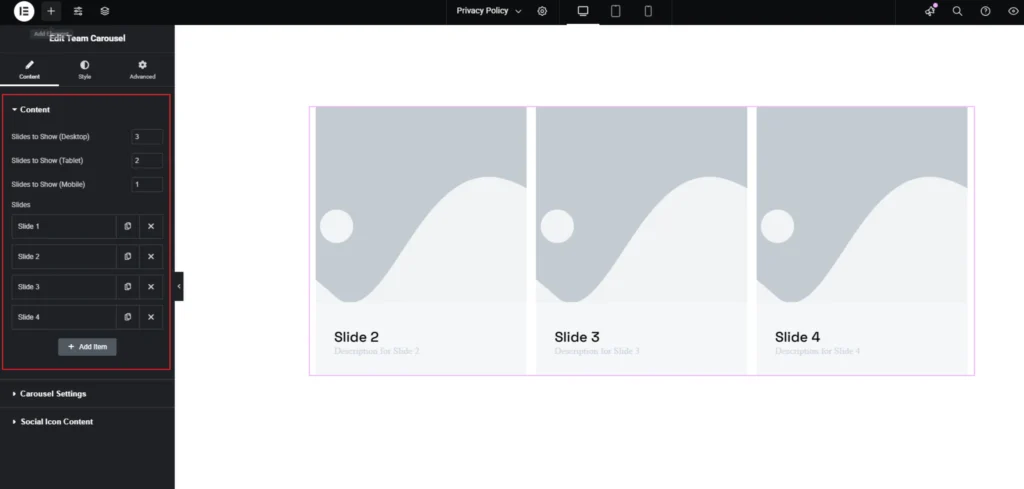
You can configure how many slides to show on different devices ensuring a responsive design. In the Slides section, you can manage individual team member profiles by adding, duplicating, or removing slides. Click Add Item to include more team members.
Step-3:
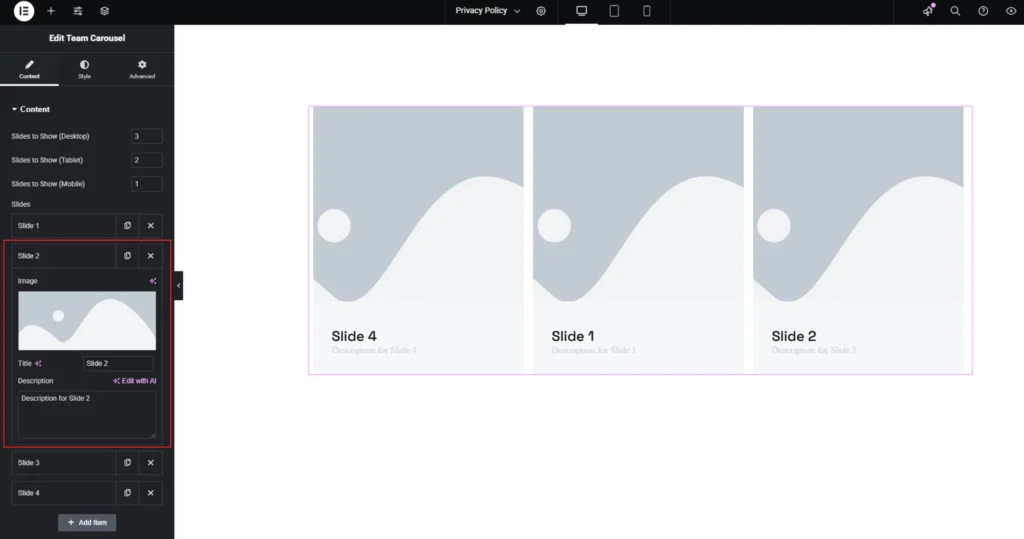
Upload an Image to represent the person, add a Title for their name, and provide a Description to highlight their role or achievements.
Step-4:
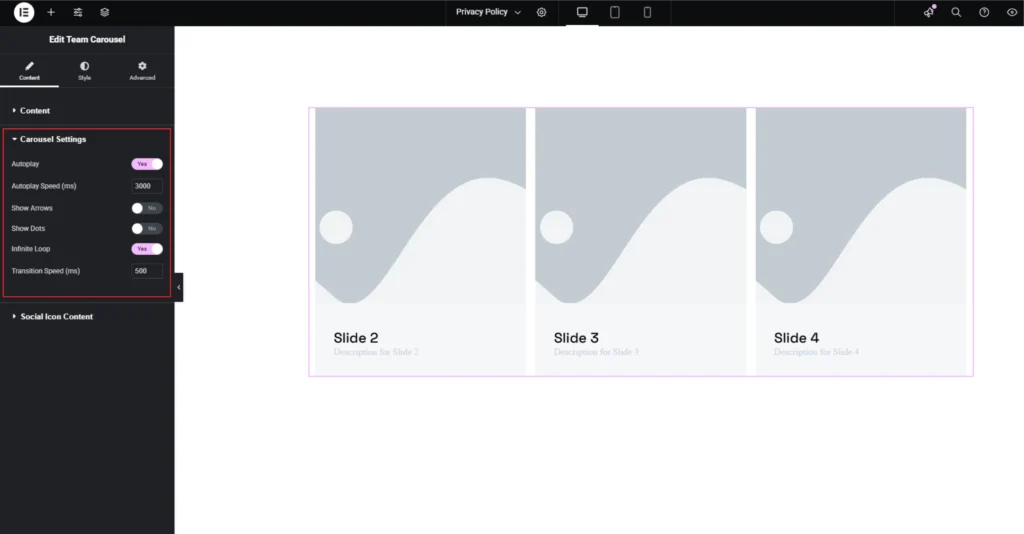
You can enable Autoplay to automatically rotate through slides and set the Autoplay Speed (ms) to adjust the delay between transitions. The Show Arrows and Show Dots options let you enable or disable navigation controls for users to interact with the slider manually. Enabling Infinite Loop ensures that the carousel continuously cycles through slides without stopping. The Transition Speed (ms) setting controls how fast each slide changes, providing a smooth and dynamic experience for users.
Step-5:
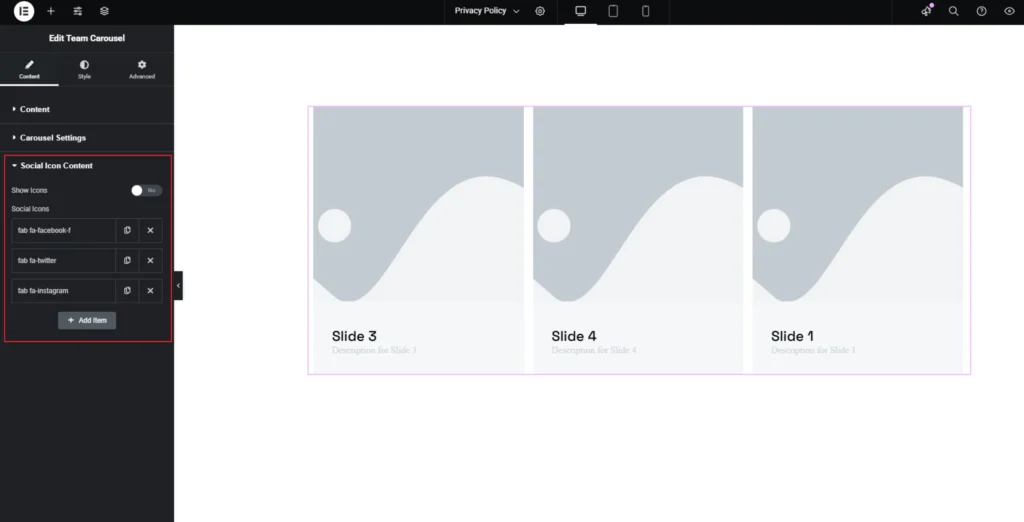
The Social Icon Content section allows you to display social media links for each team member in the Team Carousel. You can enable or disable the Show Icons option based on your preferences. The Social Icons list lets you add or remove icons. Clicking Add Item allows you to include additional social media links.
Step-6:
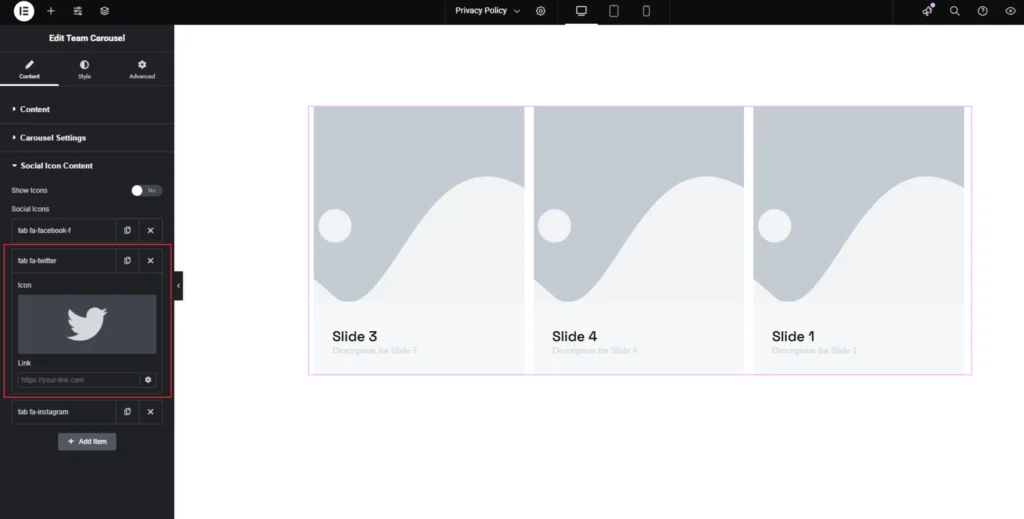
Each social media icon in the Social Icon Content section can be individually customized. You can select an icon representing a social media platform, such as Twitter, and add a link directing users to the respective profile or page.
Step-6:
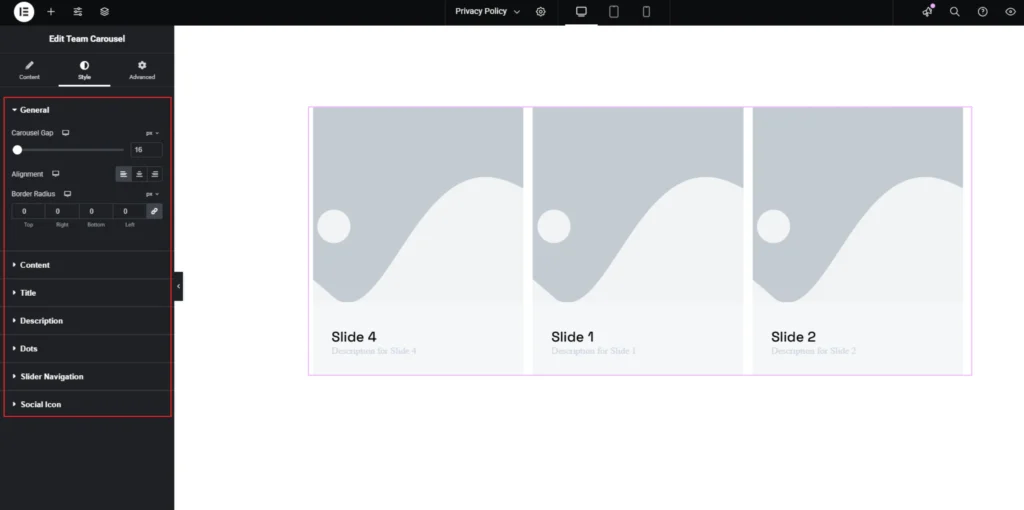
Customize the Carousel style from the “Style” section.