HEA Text Marquee
Refer to the documentation below to get a detailed guide on how to use the Text Marquee widget effectively.
Step-1:
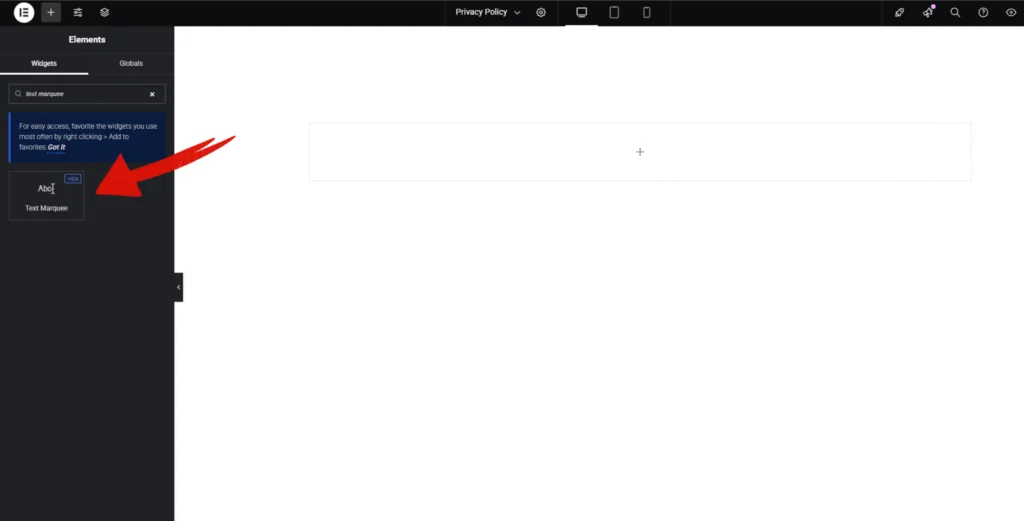
Open Elementor Editor Search for “Text Marquee” in the Elementor panel, drag the “Text Marquee” widget to a container on your page.
Step-2:
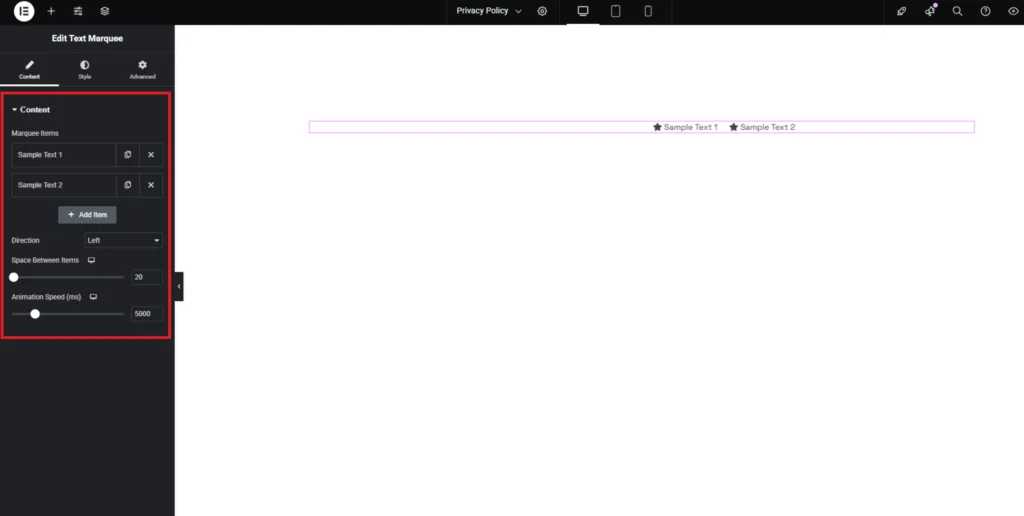
The Text Marquee widget allows you to create an eye-catching scrolling text effect. Customize your marquee by adding multiple text items, adjusting the animation direction (left or right), and setting the spacing between items for better readability. You can also control the animation speed to match the pace of your website’s design.
Step-3:
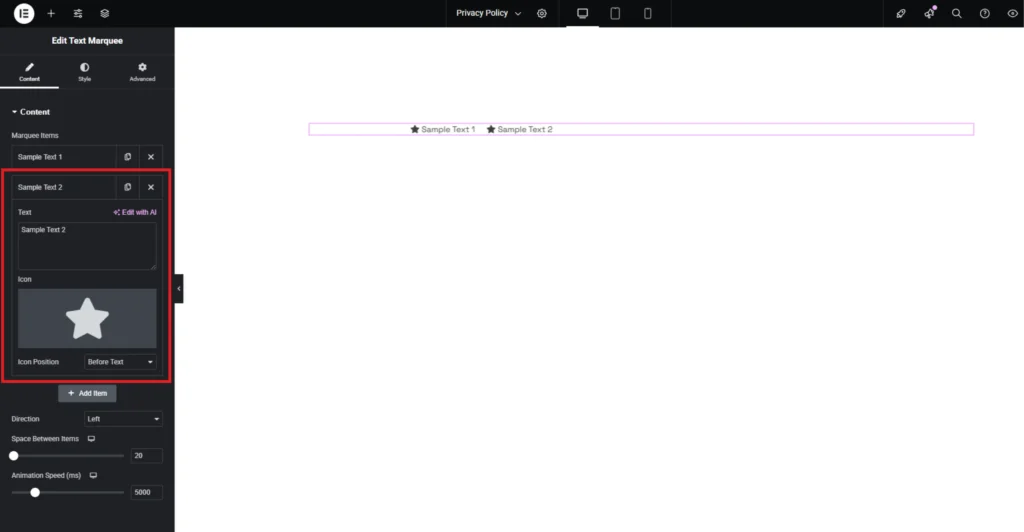
You can assign unique icons to each text item and decide whether they appear before or after the text, adding a layer of visual interest. The scrolling direction is fully adjustable, allowing you to move text left or right as needed. Fine-tune the spacing between items for a cleaner look and set the animation speed to control the flow of movement.
Step-3:
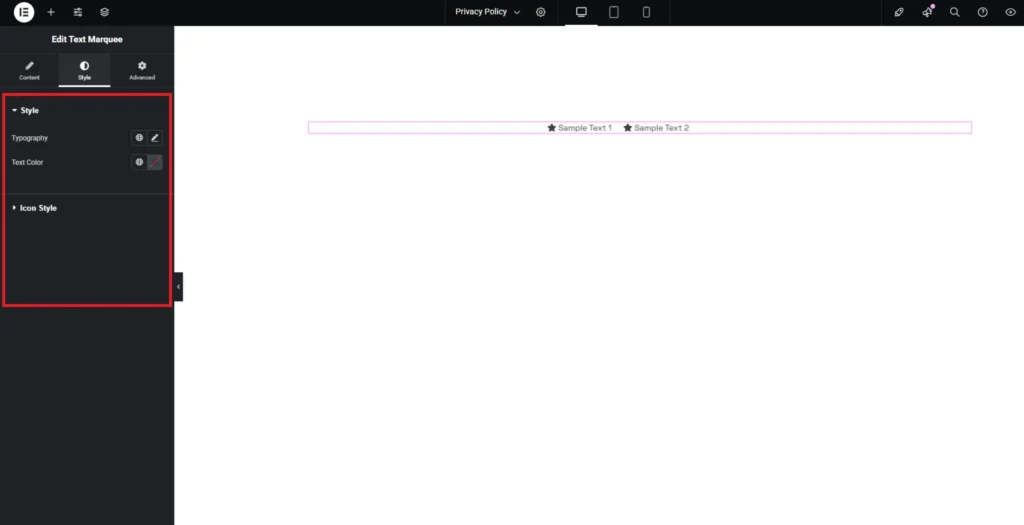
Customize the Text Marquee style from the “Style” section..